
How to Set Up a Pinterest Business Account in 2026 (Step by Step)
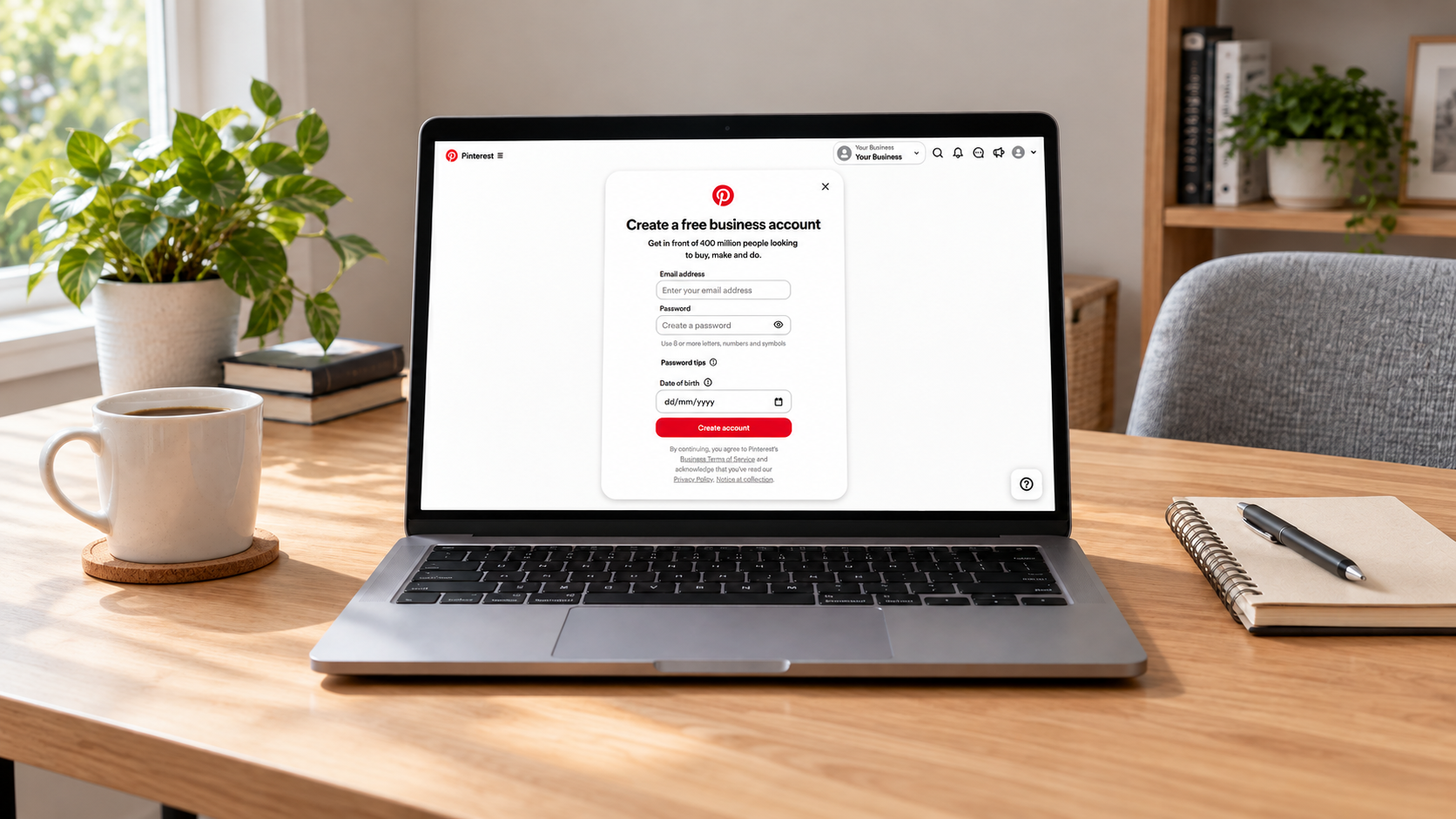
Learning how to set up a Pinterest business account is straightforward. Preparing it to represent your brand and send people to the right products takes a little more thought.
This guide covers both: opening your account and building a useful foundation, with examples for jewellery and watch businesses. You will finish with a clear profile, relevant boards and a plan for your first Pins.
Quick answer: Create a free business account on Pinterest using a desktop browser, or convert an existing personal account. Then complete your profile, connect your website, organise your boards and publish relevant content. Advertising is optional.
Instructions checked against Pinterest’s documentation in October 2026. Menu labels can vary between accounts.
Before you start your Pinterest business account setup
Before working through how to set up a Pinterest business account, gather these essentials:
- A business email address that you will keep access to.
- Your brand name and a recognisable logo.
- Your website address, if you have one.
- Access to your website or domain settings for verification.
- A short description of what you sell and who it is for.
- A small selection of product photographs or videos you have permission to use.
For a jewellery business, that could include a clean necklace close-up, a photograph showing its length when worn and a styling image. A watch brand might prepare a dial detail, a wrist shot and a photograph showing the case profile. These give you different ways to introduce a product without repeating the same image.
Use an email your business controls. If someone helps manage the account later, arrange appropriate access rather than passing around your main password. Keep recovery details current from the beginning.
Step 1: How to set up a Pinterest business account
For a new account, use a desktop browser:
- Visit Pinterest, log out if necessary, and choose Sign up.
- Select Create a business account.
- Enter an unused email address, password and your age.
- Complete the profile and business information prompts.
- Answer the advertising question and finish onboarding.
You can use the account organically without buying ads. Pinterest currently limits new business account creation to desktop. Its official account guide explains the available routes.
Already have a personal account? Convert it instead
On desktop, open Settings → Account management → Convert to a business account and follow the prompts. In the app, open your profile settings and find the conversion option under Account management.
Conversion keeps your Pins and followers. Business accounts are public; a private account must become public first. Pinterest no longer supports creating newly linked personal and business accounts.
Should you create a new account or convert?
My recommendation: start separately if your existing profile is mostly personal. Convert if it already represents the business and its content fits your customers.
A profile filled with family holiday ideas and unrelated hobbies needs a different editorial direction from a fine jewellery shop. An existing profile dedicated to your own handmade jewellery is a more natural candidate for conversion. Review what a prospective customer would see before making that choice.
Step 2: Complete your business profile
Your profile should answer three questions quickly: whose account is this, what do they offer, and where can I find it?
Use your actual brand name. If a short descriptor improves clarity, include one, but avoid turning the name into a string of search phrases. Choose a username that resembles your website and other social handles where possible.
Your logo needs to remain readable at a small size. A detailed wordmark may work on your website but become difficult to recognise in a circular profile image. Preview the crop before saving it.
Write a bio that describes your products
Be specific about the collection rather than relying on words such as “beautiful” or “luxury”. Materials, styles and occasions give visitors more useful information.
Fictional jewellery brand example: “Solid gold jewellery for everyday wear and meaningful gifts. Explore delicate necklaces, stacking rings and understated pieces for special occasions.”
A watch brand could describe its actual focus: mechanical dress watches, colourful everyday designs or small-batch craftsmanship. Only mention features that are true of the products.
Add your website and check the address. Keep the wording consistent with the store so visitors recognise the same business when they click through.
Step 3: Claim your website on Pinterest
Adding a website link and claiming the website are separate actions. Claiming connects saved website content with your profile and supports reporting on that activity.
Open Settings → Link to Pinterest → Websites → Claim. Pinterest lists HTML tag, HTML file and DNS TXT verification, plus Google Merchant Center for some accounts.
- HTML tag: Add Pinterest’s verification tag to your website’s head section.
- HTML file: Upload its verification file to your website root.
- DNS TXT record: Add its record through your domain’s DNS provider.
Return to Pinterest, enter the website address and verify. DNS updates can take up to 72 hours. You need control of the website; most Etsy, Amazon and eBay storefronts cannot be claimed. Follow Pinterest’s website claiming instructions for your chosen method.
Claiming a WordPress website with Rank Math
If you use Rank Math, its verification field can handle the HTML tag for you:
- Copy your Pinterest verification tag.
- In WordPress, open Rank Math SEO → General Settings → Webmaster Tools.
- Paste it into Pinterest Verification ID and save.
- Return to Pinterest and verify your website.
Rank Math provides its own WordPress verification walkthrough. If verification fails, check that the tag is present on the public site and clear any website cache before trying again.
What if your store uses Shopify?
Use a verification method supported by your store and domain setup. DNS verification can be useful when you want to avoid editing theme code. Make sure you are editing DNS with the provider that actually manages your records, which may be different from your store platform.
Website claiming does not itself mean you have been accepted into the Verified Merchant Program.
Step 4: Create boards around your products and customers
Think of boards as useful collections a customer would understand. Start with a manageable selection that matches the products and content you can actually publish.
For a jewellery store, possible board names include:
- Gold Necklace Layering
- Everyday Gold Jewellery
- Engagement Ring Inspiration
- Jewellery Gift Ideas
For a watch brand, you might choose:
- Men’s Dress Watches
- Minimalist Watches
- Watch Styling Ideas
- Watches for Special Occasions
Only use categories that fit your stock. An engagement ring board makes little sense for a brand selling exclusively costume jewellery.
Write a short board description explaining what belongs there. For example: “Gold necklace layering ideas, delicate chains and pendant combinations for everyday outfits.” That is more helpful than a list of disconnected keywords.
Use customer language. “Gold Necklace Layering” tells someone what to expect more clearly than an internal collection name such as “The Golden Edit”. There is still room for your brand voice in the images and descriptions.
Step 5: Publish your first Pins
A good first Pin gives someone a reason to look closer and takes them to a page that delivers on the image.
For standard image Pins, Pinterest recommends a 2:3 ratio, such as 1000 × 1500 pixels. Its creative guidance also covers video formats.
- Open the creation menu and choose Create Pin.
- Upload your image or video.
- Add a clear title, useful description and relevant destination link.
- Select an appropriate board and check the preview.
- Publish, or use the scheduling option available to your business account.
See Pinterest’s publishing instructions if your interface looks different.
A jewellery Pin example
Image: A close-up showing a pendant worn against a plain shirt.
Title: “A Delicate Gold Pendant for Everyday Layering”
Description: “See how this delicate gold pendant sits alongside a shorter chain. Explore the necklace’s dimensions, materials and available lengths in our store.”
Destination: The exact necklace product page.
This is an illustrative example, not a performance claim. Adapt the wording to the actual material and design. Gold-plated jewellery should never be described as solid gold.
Match the landing page to the promise
A Pin featuring a specific watch should usually lead to that watch. A broader styling image could lead to a relevant collection or an article explaining the look.
Open each link on your phone before publishing. Check stock availability, image consistency and how easily someone can find the details shown in the Pin. A strong image cannot fix a broken or confusing destination page.
Step 6: Understand your Pinterest analytics
Once content is live, use analytics to learn which ideas attract attention and which encourage people to visit your store.
Three useful starting metrics are:
- Impressions: How often your Pins appeared on screen.
- Saves: How often people saved them to a board.
- Outbound clicks: Clicks to a destination outside Pinterest.
These definitions and reporting options are covered in Pinterest’s analytics guide.
For a product business, outbound clicks deserve attention alongside what visitors do on your website. Impressions can help you understand visibility, but they do not establish that a Pin generated sales.
Keep a simple record of the product, image style and destination used. Compare patterns across several Pins rather than declaring a winner after one early result. Your website analytics can help you assess whether Pinterest visitors explore collections or complete purchases.
Selling products? Plan your next steps
Once the basics are working, assess whether catalogues, product Pins and conversion measurement fit your store. Treat these as separate projects with their own technical and eligibility checks.
Start by making the website useful: accurate product descriptions, clear delivery information and functioning product pages. Then decide which collections deserve consistent creative attention.
For example, a watch brand could prepare wrist shots for styling inspiration, dial close-ups for design detail and short videos showing the product in use. Our guide to Pinterest for jewellery and watch brands explores the wider opportunity for these businesses.
Common Pinterest business account setup mistakes
- Leaving the profile vague. Tell visitors what you actually sell.
- Assuming a website link completes verification. Check that the claim succeeded.
- Creating too many empty boards. Begin with categories you can support.
- Sending every Pin to the homepage. Choose the page that best matches the content.
- Using unrelated keywords. Describe the product and idea accurately.
- Publishing without checking mobile links. Test the entire journey.
Before making more Pins, fix anything that prevents someone from recognising your brand or reaching the right product. A tidy account is easier to build on than one that needs constant correction.
Pinterest business account FAQs
Is a Pinterest business account free?
Yes. Creating the account does not require an advertising purchase. Budget separately if you later choose paid promotion.
Do you need a website to create one?
No. If you’re wondering how to set up a Pinterest business account without a website, simply skip the website field during onboarding. You can add it later when your store is ready.
Can you create a business account in the app?
Pinterest currently directs new business signups to desktop. Existing personal accounts can be converted through the app.
Will converting remove my followers?
No. Pinterest says existing followers and Pins remain when you convert.
What is the difference between a personal and business account?
A personal account suits individual use. A business account adds business tools such as analytics and advertising access.
Does completing setup guarantee traffic?
No. Setup gives you a foundation. Results depend on your content, products, audience, website and ongoing work.
How to set up a Pinterest business account: final checklist
- Choose a separate business account or a relevant account to convert.
- Use a recognisable name, logo and clear bio.
- Add and claim your website where eligible.
- Create boards that reflect your products.
- Publish accurate Pins with working destination links.
- Review analytics and keep improving your content.
Knowing how to set up a Pinterest business account is the starting point. The ongoing work is choosing what to show, creating Pins that fit your brand and giving people a useful reason to visit your website.
Want help getting your brand started? I provide Pinterest management services for jewellery and watch brands, including account setup and ongoing content management. Explore the service and packages to see whether BoardClicks is a fit for your business.
2 Comments